
How to anchor products to your Pour Now listing
TL;DR. Anchoring adds a product's Pour Now Product ID to the end of your listing URL, like ?productId=24935146, so a shopper who clicks a specific bottle on your site lands on that exact product inside your listing, ready to buy, instead of your whole catalog. Grab the ID in Pour Now under Listings, then point that product's "find in store" link at [your-listing-url]?productId=[ID].
What product anchoring is
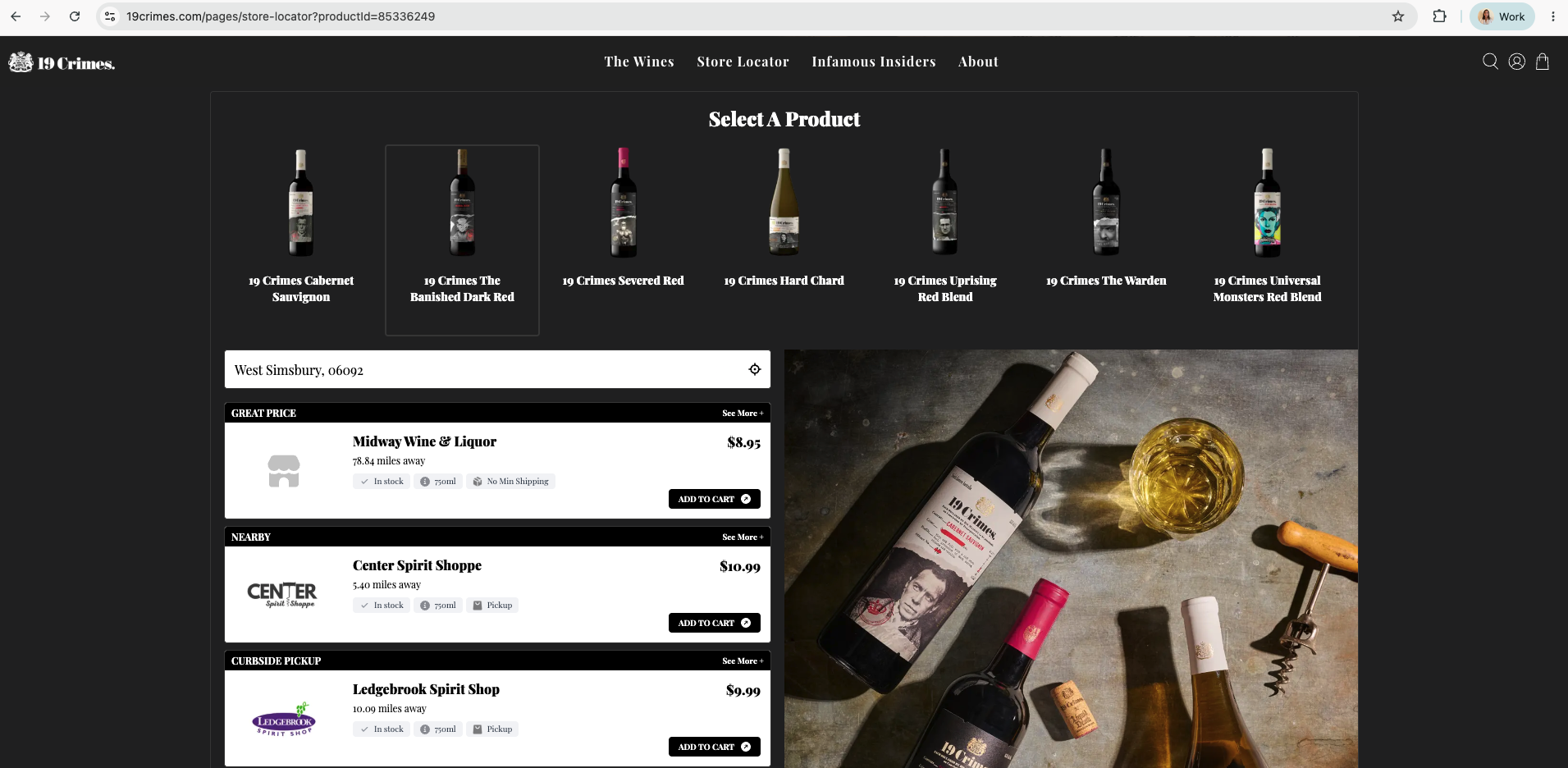
Product anchoring means adding a product's Pour Now Product ID to the end of your listing URL, so the link carries the shopper straight to the product they were looking at. Without it, someone who taps "find in store" on a single bottle lands on your full Pour Now listing and has to hunt for the one they wanted.
With it, they land on that product, already front and center, ready to buy at a nearby retailer. It is a small change to a URL that does a lot of work: Pour Now's job is to get your shopper to the purchase, and anchoring keeps that path short.
Watch this video to see product anchoring in action!
Why it's worth doing
Every extra step between "I want this" and "I can buy this" is a chance to lose the sale. Anchoring preserves the shopper's intent. They clicked a specific product, so they should land on that same product in the listing.
This matters most for brands with a lot of SKUs. An un-anchored link drops the shopper into a wall of options and asks them to re-find the one they already chose. Anchoring keeps the handoff clean: the exact vintage or size they clicked is the one waiting for them.
How to anchor a product
There are two parts: get the Product ID from Pour Now, then add it to the link your button uses. The method below is universal and needs no code. The Shopify catalog-wide section further down is developer-level, so loop in whoever manages your Shopify theme for that part.
- In Pour Now, go to Listings and open the listing you're working on.
- Click Products Config to see the Product IDs for every product in that listing. [Screenshot: the Products Config view in Pour Now with a Product ID visible, e.g. "ID: 24935146"]
- Copy the Product ID for the product you want to anchor.
- Find the URL that your product's call-to-action button (often "find in store") points to. Un-anchored, it looks like
https://[your-listing-url]. - Add
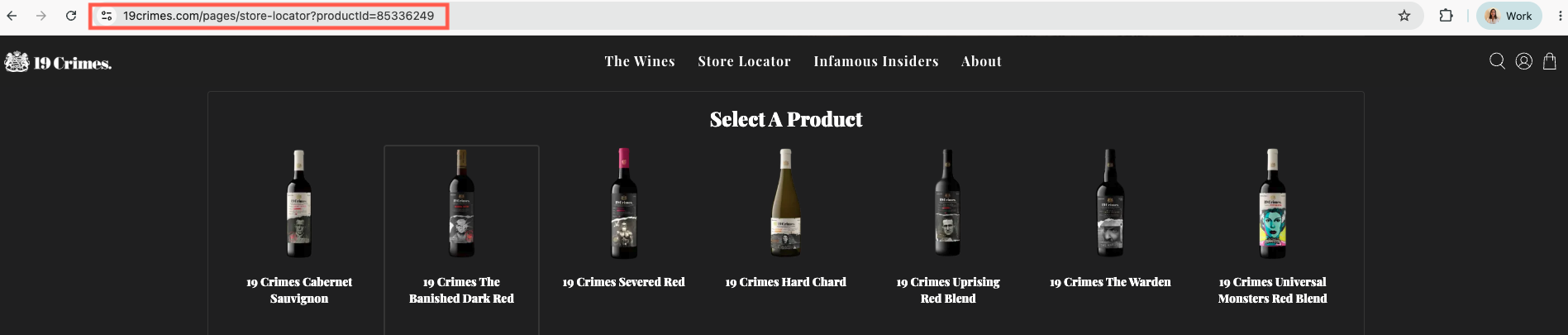
?productId=[ID]to the end, so it becomeshttps://[your-listing-url]?productId=24935146. Point the button at this anchored URL. [Screenshot: the same listing URL before and after, with ?productId=24935146 appended]
For a single link or a one-product page, pasting the anchored URL by hand is all you need. To anchor an entire Shopify catalog without editing every link, use one of the two methods in troubleshooting.
What success looks like (and how to fix it if it doesn't)
When it's working: a shopper clicks a specific product on your site, taps find in store, and lands on your Pour Now listing with that exact product already anchored and ready to buy at live, in-stock retailers.
Anchoring a whole Shopify catalog at once. Editing one URL by hand is fine for a single link. For many products, you'll want each product's button to automatically build its own anchored URL. This is developer-adjacent work, so pull in whoever manages your Shopify theme.
First, store each product's Pour Now Product ID in a Shopify metafield: go to Settings > Custom Data > Products and create a metafield (for example, "Pour Now Product ID"). Then add the right ID to each product. From there, pick one of two ways to make the button dynamic.
- Method 1: Connect Dynamic Source (no code). Best when your button is a native theme block. Create a URL or single-line-text metafield (for example, "Store Locator URL PN_ID"), and paste the full anchored URL (
https://[your-listing-url]?productId=[ID]) into that field on each product. In the theme editor, hover over the Link URL field, click the Dynamic Source icon (a small stack-of-layers icon with a+), and choose your metafield. The field turns into a purple pill, and the button now pulls each product's own URL automatically. - Method 2: Custom Liquid (for developers). Best when you'd rather store just the Product ID and build the link in code. Store the Product ID in a metafield, note its exact namespace and key (Settings > Custom Data > Products), then replace your static store-locator block with a Custom Liquid block in the theme editor and drop in the snippet below. Replace
custom.product_idwith your metafield key and the base URL with your listing page. The{% if %}guard hides the button on any product that's missing an ID, so shoppers never see a broken link.
liquid
{% if product.metafields.custom.product_id %}
  <div class="store-locator-wrapper" style="text-align: center; margin: 15px 0;">
    <a href="https://[your-listing-url]?productId={{ product.metafields.custom.product_id }}"
       style="font-family: inherit; font-size: 16px; font-weight: 500; text-decoration: underline; color: #000; letter-spacing: 0.5px;">
      Find nearby store
    </a>
  </div>
{% endif %}
If something's off:
- The shopper lands on the full listing, not the product: the
productIdis missing or wrong. Confirm the URL ends with?productId=[ID]and that the ID matches the one in Listings > Products Config, which is the source of truth. - The button looks broken or empty on some products: that product has no Pour Now Product ID set. Add it to the metafield. With Method 2, the safety check hides the button until an ID exists, which is expected.
- The wrong product anchors: an ID was mistyped or copied from the wrong row. Re-copy it from Products Config and update the metafield or link.
Need a hand?
Ask Pour, the assistant in the bottom corner of your screen, or email help@pour.now.