
How do I add custom media to my Listings?
Have creative you'd like to showcase in a Listing? You can upload media that's specific to each product in a Listing.
You can upload listing-specific images and videos for each product in your listing. These allow you to customize how each product is displayed on a per-listing basis, giving you full control over the visuals.
How to add Listing-specific media
- Go to your Listings page.
- Click the three dots icon (⋯) on the Listing you want to update.
- Select Products Config.
- For each product, click Update Media.
On the Update Media screen for each product, you can:
- Upload images and/or videos
- Upload separate versions for:
- Desktop view
- Mobile view
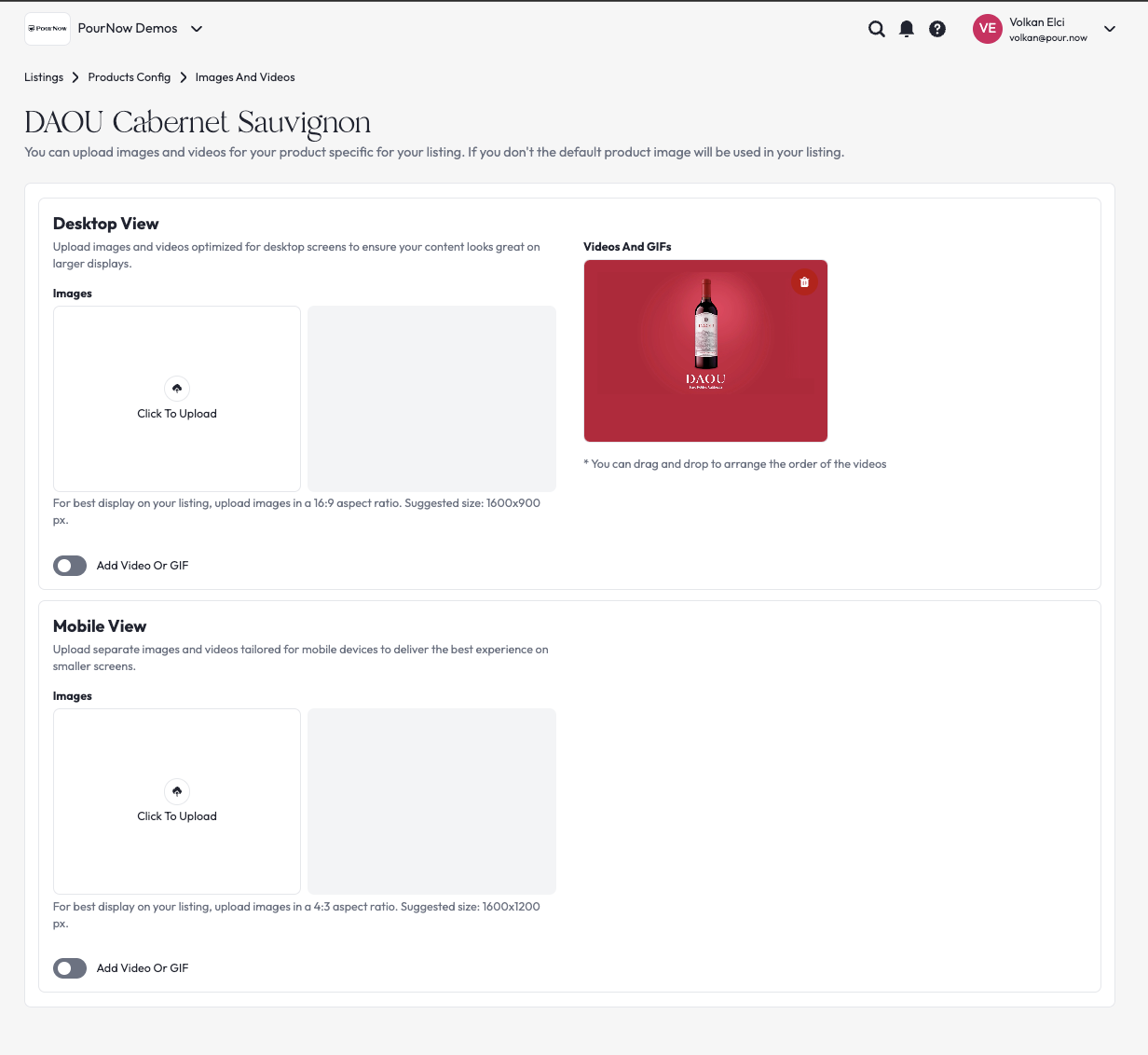
If you upload listing-specific media, it overrides the default product image or video. If you don't upload listing-specific media, the default product media is used.
How to add Listing-specific hero content
- Go to your Listings page.
- Click the three dots icon (⋯) on the Listing you want to update.
- Select Products Config.
- For each product, click the HERO CONTENT button.
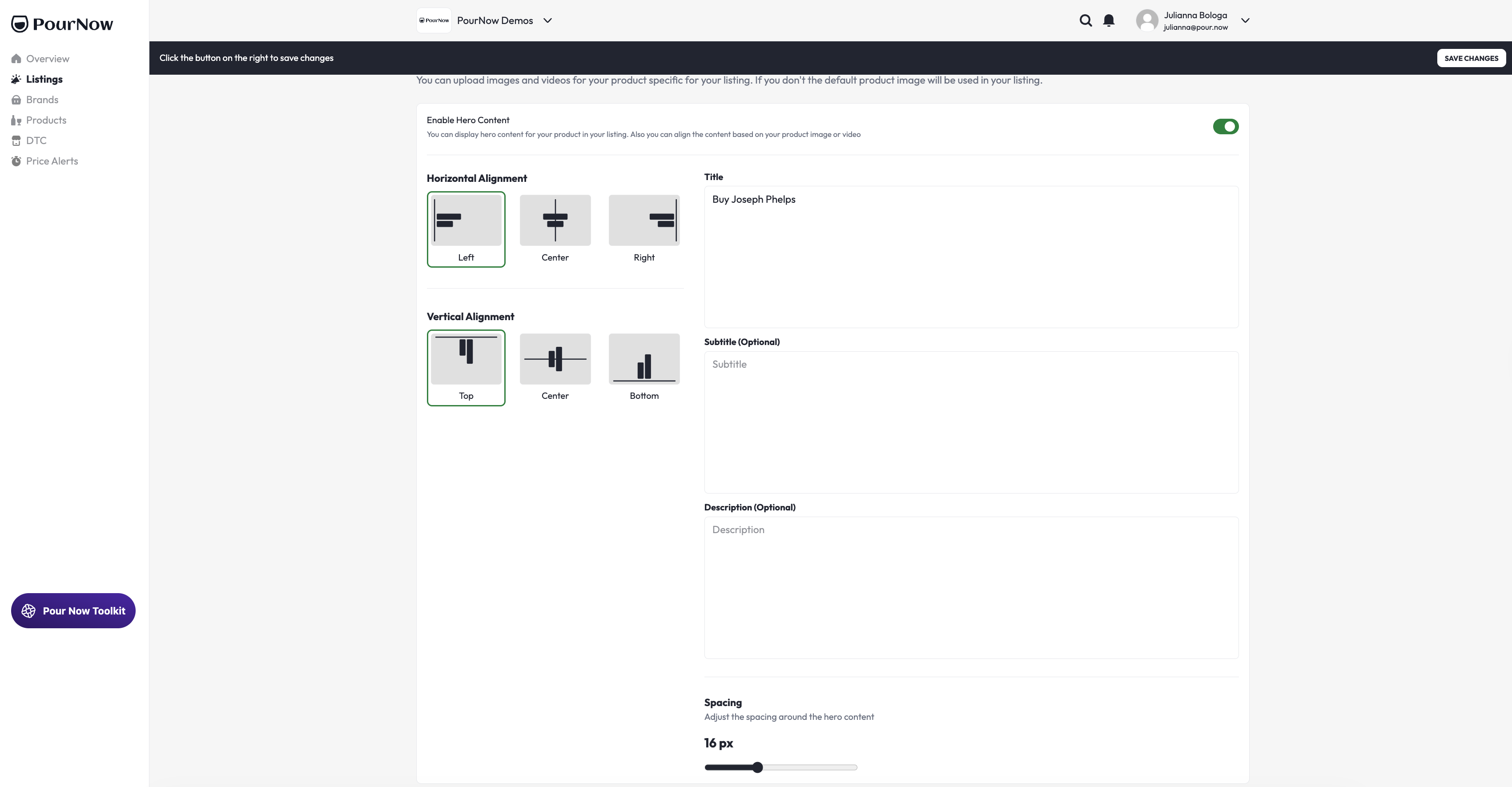
On the Hero Content screen for each product, you can:
- Add Header, Subheader, and Description text
- Align and position the text
Important for the Full Screen template
If your Listing uses the Full Screen template, uploading Listing-specific media is highly encouraged for proper visual display. For more information, click here!